A knob, three keys, and a desk for my AI agents.
I bought a Ulanzi VibeKey because I wanted to put my hands on the work. Building the software to make that useful became VibeDesk.
Claude is working in one session. Codex is reviewing something in another. An agent has started a smaller agent, a command is still running, and somewhere in that group a question needs an answer.
I can do all of this with a keyboard and a mouse. I was doing all of it with a keyboard and a mouse. The part that bothered me was the repeated trip through windows just to find the right conversation, understand what had stopped, and say the next thing.
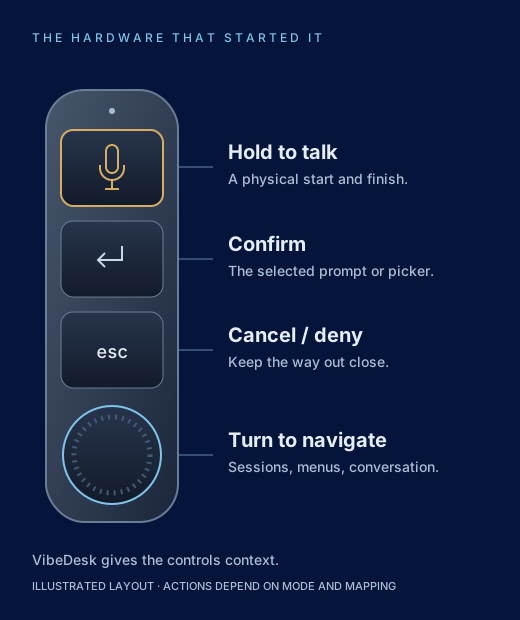
Then I bought a little wireless controller: the Ulanzi AU05 VibeKey. Three keys, a knob, and a microphone. It looked like a useful physical interface for the way I was already working with coding agents.
The VibeKey was the reason I started VibeDesk. The dashboard grew out of the hardware. I wanted to turn a knob to move between agents, hold a key to speak, and make a deliberate decision without finding the right terminal every time.
First, make the gadget work on my terms
The usual starting point was the vendor’s companion application. I wanted to understand the software handling input and microphone access on my development machine, so I chose to build my own integration. That was a decision about what I was comfortable running, not a finding that Ulanzi’s application was doing anything wrong.
The receiver exposes HID interfaces—the same general mechanism used by keyboards and other input devices. The microphone is a USB audio device. Those are separate jobs: the control reports tell VibeDesk when I press, release, or turn something; the audio path supplies the speech to transcribe.
We used community protocol work as a starting point, then checked what my actual unit sent. Projects including olanzi, vibekey-lite, and au05-vibekey deserve credit here. VibeDesk has its own implementation; this was not a discovery made in isolation.
Some of the details were exactly the kind of thing that makes hardware work fun. The middle key arrived as Enter. The bottom key arrived as Escape. Clicking the knob on my unit arrived as Backspace. A turn generated both a press-like report and a release; count both and one click of the wheel skips two sessions.
Those are small byte-level facts with very visible consequences. A controller has to feel predictable. One detent should move one step. A knob click should not delete text in another application. A plugged-in receiver should not be confused with an awake, responding pad.
Getting the device talking was only the beginning. The next question was what it should control.
A shortcut needs a destination
A macro pad can send Enter. With several agents open, “Enter where?” becomes the important part.
That question explains why VibeDesk became a screen as well as a hardware integration. I needed to see the selected session, the conversation, and the pending action before touching a key. The physical control and the visible state had to agree.
The knob gives me a way to move. The desk tells me where I am and what the next press will affect.
My ordinary loop now looks like this:
- Find the work. Turn through the session list, or jump to a session that needs me.
- Read before acting. Inspect the conversation and, when needed, scroll back to the decision that led here.
- Respond deliberately. Speak a reply, choose a saved prompt, or use the appropriate key for the selected permission prompt.
- Keep going. Move to the next session without rebuilding the whole picture in my head.
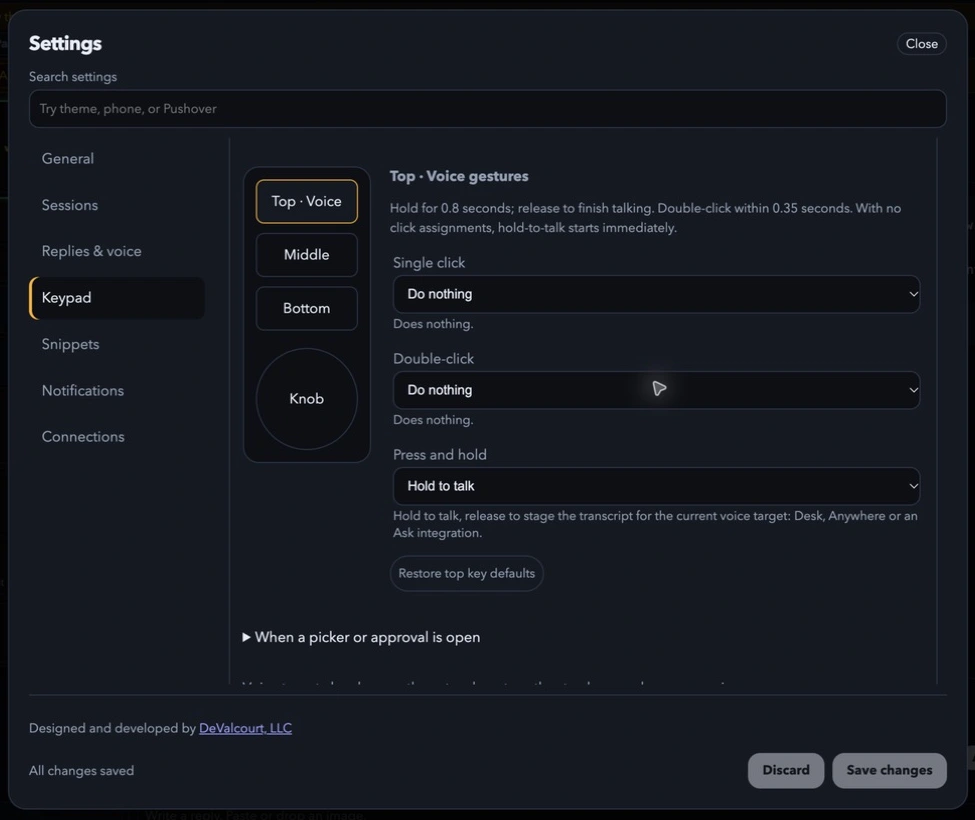
I recently added a wheel mode for the conversation itself. In my current mapping, a double-click on the top button switches the wheel between the session list and the reader. Double-click again to go back. Holding that button still starts dictation. The page shows the mode, and a picker can temporarily take the wheel while it is open.
That matters more than another shortcut on a settings screen. The same hand movement now covers both choosing the work and reading it. I can stay with a conversation long enough to understand it.
Three keys do more when the modes are clear
Settings lets me assign single-click, double-click, and hold gestures to the supported buttons, plus the knob actions and voice-target chord. I can make the pad fit my habits instead of memorizing a layout someone else picked.
Context still wins. A permission prompt, an open picker, or a recording can take priority over a general shortcut. I want Escape to remain an escape when something needs cancelling. I do not want an extra gesture to accidentally approve a command.
Reusable snippets are another good fit for the wheel: open the list, turn to the prompt, then deliberately choose or send it. “Run the tests” and “summarize what changed” become useful controls without pretending every task deserves the same answer.
Push-to-talk is about intent, too
I like a physical beginning and ending to dictation. Hold the key, say what I mean, release it. VibeDesk can transcribe locally with the configured microphone and speech model, then stage the reply with a preview and cancellation window.
The useful part is choosing where those words belong:
- Desk addresses the selected coding session.
- Anywhere is for dictation into the focused application.
- Coordinator addresses the destination I have chosen for the bigger picture, independently of the conversation I am reading.
A voice-target picker makes that destination a visible choice. There is also a temporary Command mode for desk navigation. It deliberately cannot approve, deny, send a reply, or stop work. A spoken navigation request should not become an operational decision because it sounded close enough.
The Coordinator can be the existing Grok Bot connection or a local CLI session selected from my desk. I can read a child agent’s review and still send a question to the session coordinating the release. VibeDesk routes my message; naming a destination “Coordinator” does not give it automatic authority over the other sessions.
The screen had to earn its place beside the pad
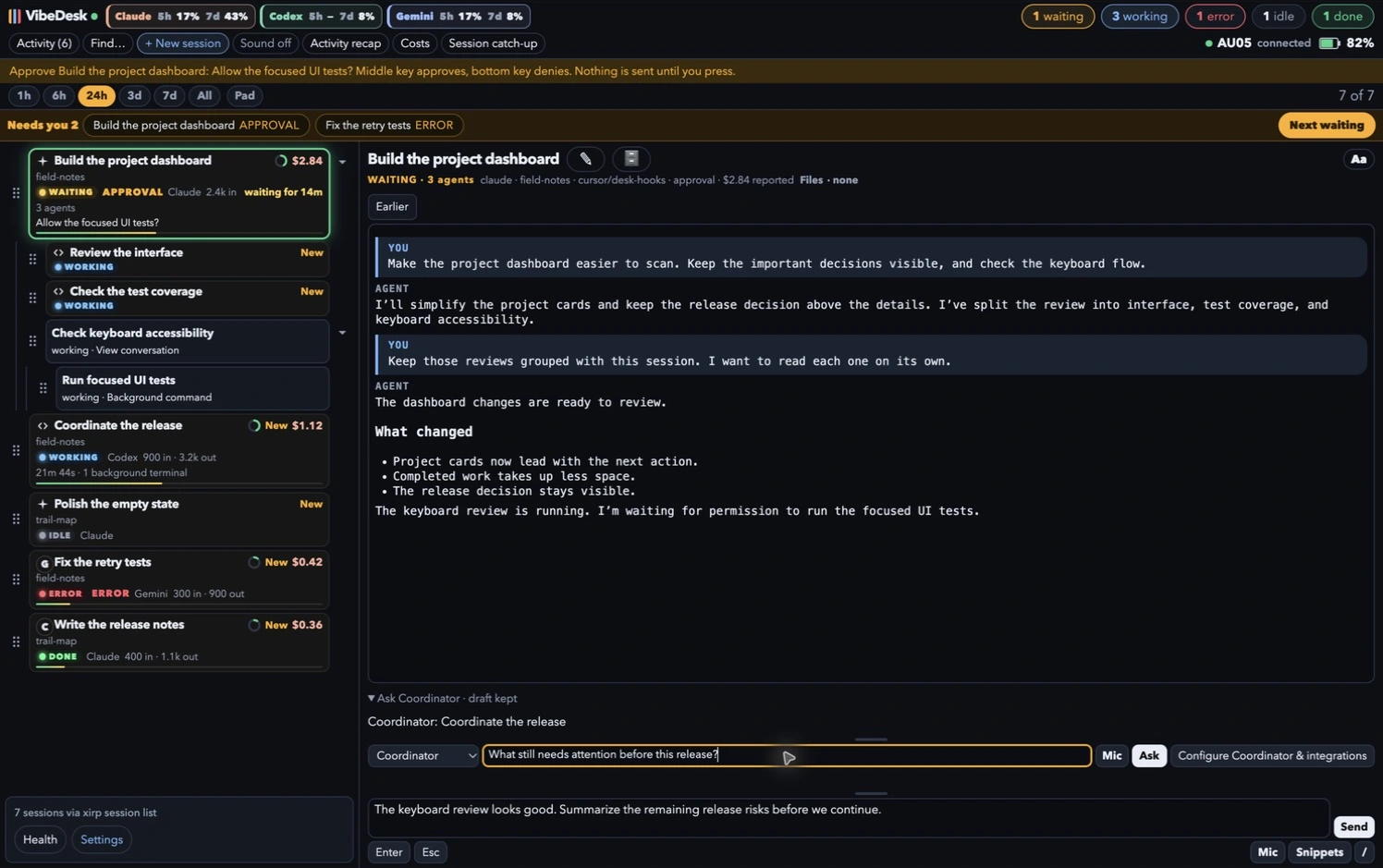
Once the hardware worked, the software started revealing its own friction. A controller is only pleasant if the interface it moves through is understandable. Most of the improvements since then have come from using it and noticing where I lose my place.
Keep the list where I put it
I do not want activity to keep rearranging my sessions. Position becomes a form of memory: the review is here, the implementation is there, the coordinator is above them. I can drag sessions into my own order. Children stay with their parent, and I can reorder them within that family.
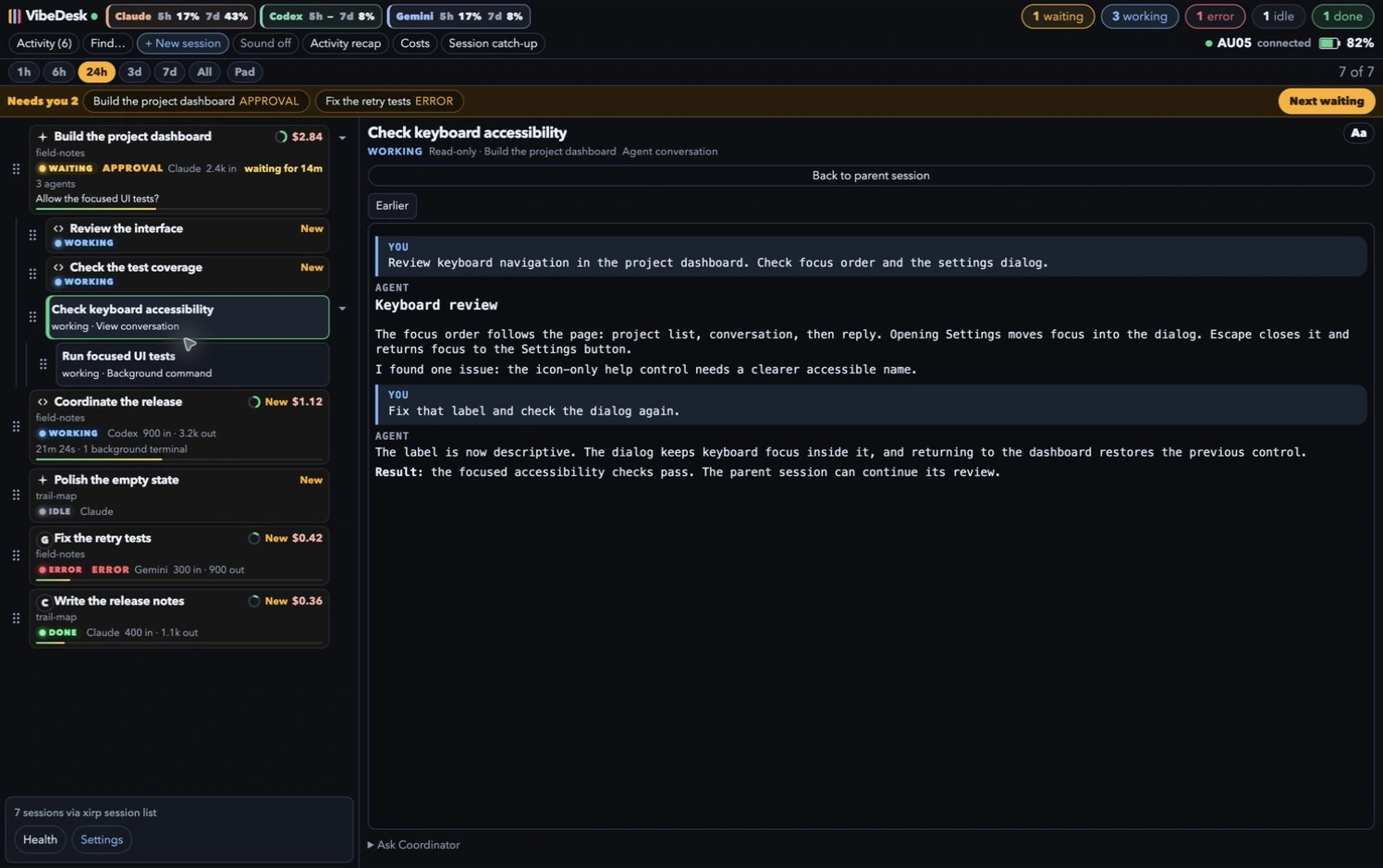
The Needs You strip handles urgency without shuffling that map. It points me toward waiting sessions and failures. Working time and background activity add context where the session data supports them. Unknown information should stay unknown.
The labels matter. An answered question should clear when the transcript confirms the answer; a generic interruption should not be presented as a new question. If the desk asks for my attention too often for the wrong reason, I stop trusting the glance.
One selected agent, one conversation
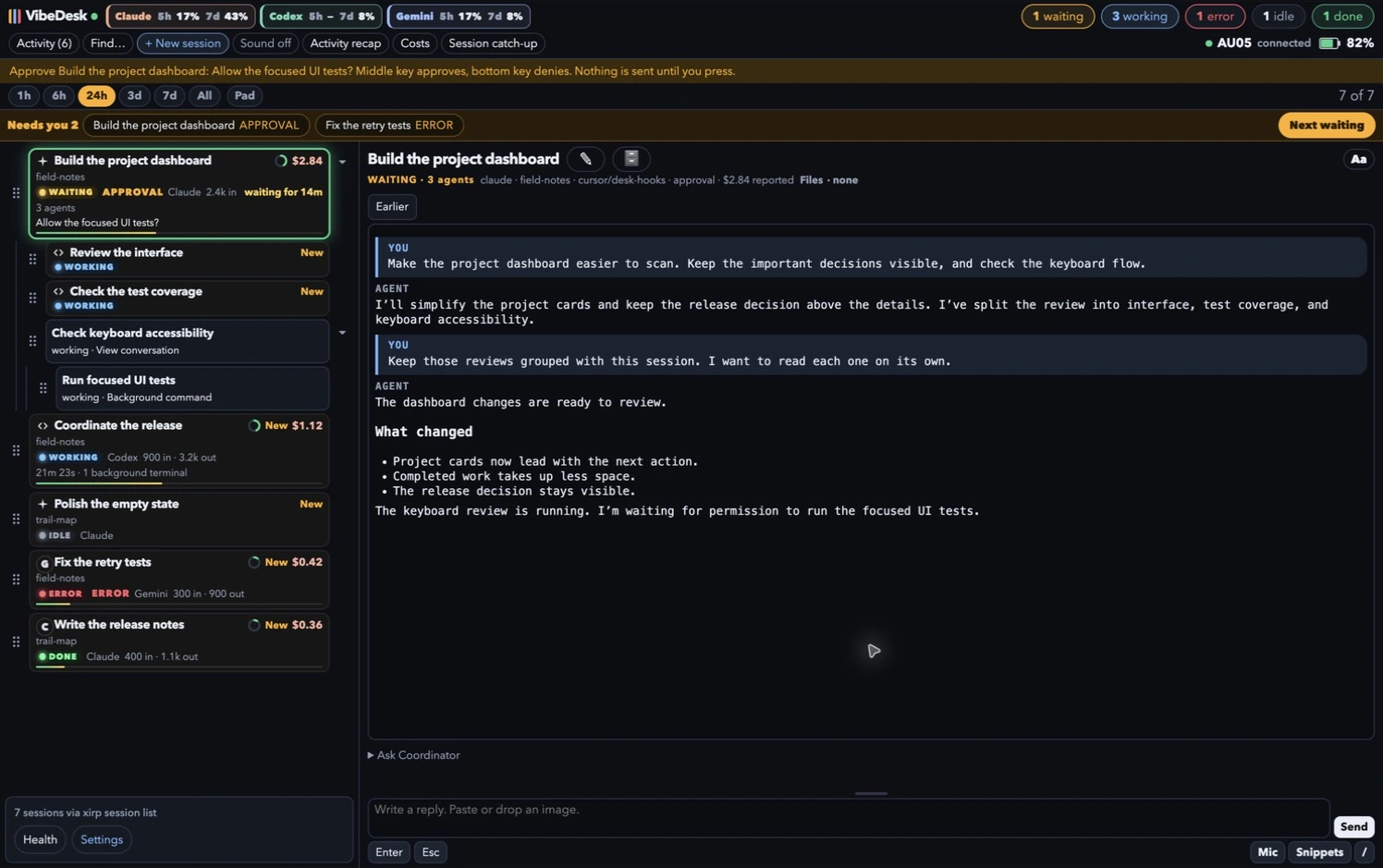
When a parent launches another agent, I want to see the relationship without mixing the conversations together. Earlier versions expanded the child inside the parent’s reading pane. Selecting it in one place and hunting for it in another was confusing.
Now the sidebar holds the family relationship. Selecting a child opens just that child’s conversation. If it only exposes a saved log, it is read-only; my next reply must not quietly go to the parent. A child with its own session and input channel can retain its normal controls.
Let me read back without losing my place
Saved history has Earlier, Newer, and Latest controls. I can revisit the original request or an earlier decision while new messages continue arriving. Reading an older page should not make the interface pull me back to the bottom.
This uses accessible saved conversations, not an unlimited copy of terminal scrollback. Providers save different things. Keeping bounded pages makes long sessions manageable without claiming the desk can reconstruct information it never received.
That distinction became more useful once the wheel could scroll the conversation. The pad now helps with understanding the work, as well as answering it.
Keep replies recoverable and numbers understandable
Drafts belong to their sessions. Typed and dictated replies get a cancellation window. Delivery checks the intended destination and keeps a recoverable draft when it cannot confirm the send. A change of selection should not turn a correct reply into a message to the wrong agent.
Changed-file summaries and activity recaps help me catch up after stepping away. I can start a session by choosing its project, agent, and model, then return to the same desk to follow it. The aim is to keep the repeated work together without hiding the details I need to review.
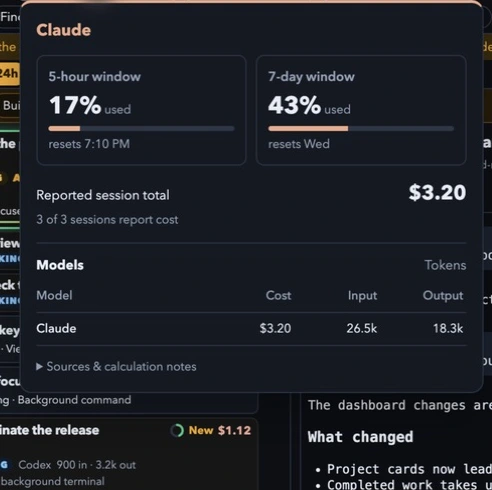
I can also choose which providers appear in the header. Their overlays separate usage windows, reported session cost, coverage, and model details. A reported cost is not an invoice; a missing value is not zero. The separate account Costs view answers a different question from a session’s own report.
Local software, with connections I choose
VibeDesk runs as a local Python service with a browser interface, session adapters, hooks, transcript readers, and a small native macOS helper for desktop interactions. It can use Xirp’s session catalog or local discovery paths. The AU05 integration talks to the device without Ulanzi’s companion application.
The browser also works without the physical pad. That is useful when I am away from the desk, but the hardware remains the reason the project exists. I built a visible place for the controls to act, and it turned out to be useful on its own.
Private phone access can use Tailscale. Optional bots, notifications, and coding providers can involve outside services. “Local” describes where the desk runs; it does not mean every connected workflow is offline.
Watch the desk in use
This 2-minute, 47-second walkthrough shows the interface, session families, history, replies, Coordinator, usage, and settings. It is an edited screen walkthrough with fictional sessions and my authorized AI narration. It demonstrates the software rather than a live recording of the physical pad.
The part I wanted to keep physical
Working with several coding agents changes where my effort goes. I spend more time directing, reading, checking, and deciding. A lot of the friction lives in the short distance between noticing that something needs me and reaching the right place to respond.
The VibeKey gave me a reason to look closely at that distance. The microphone made speaking convenient. The knob made navigation tangible. The keys made confirmation and cancellation feel deliberate. VibeDesk supplies the context those controls need.
I still have to read the question. I still own the decision. What I wanted was a more comfortable way to stay present in the work.
VibeDesk is in daily use and active development. This is a look at what I built for my own desk, not a public download announcement.
This expanded article combines my November 3 build story with the November 8 product walkthrough and subsequent improvements. Screenshots show fictional demonstration data. Ulanzi makes the hardware; VibeDesk is independent software developed by DeValcourt, LLC.